Showing posts with label apps. Show all posts
Tuesday, 1 December 2015
Brookes apps in Moodle
This is an overview of how we are able to make some of our 'mobile' apps available to students directly from within Moodle.
The benefit to students is that they have an opportunity to utilise the rich functionality these apps have to offer even if they don't have a mobile device (or it is currently unavailable). This aligns with Brookes' drive to extend and improve accessibility.
Our mobile apps
The benefit to students is that they have an opportunity to utilise the rich functionality these apps have to offer even if they don't have a mobile device (or it is currently unavailable). This aligns with Brookes' drive to extend and improve accessibility.
Our mobile apps
Mobile apps are, generally, either:
- 'native' - written and built for a specific mobile platform (operating system), such as Apple's iOS
- 'hybrid' - written in a more generic way, these apps can be built for several different mobile platforms or
- 'web' - written for display in a mobile's web browser
Both 'native' and 'hybrid' apps require installation on the mobile device (downloaded from app stores) and can use features of the device that may be unavailable to 'web' apps.
To simplify development and maintenance, minimise multi-platform deployment effort and maximise functionality, we have chosen to make the majority of our apps 'hybrid' ones.
Hybrid apps
The program code files for these, like many web apps, are written using the standard web-based 'languages' of HTML, CSS and JavaScript. Additional functionality, such as the capability to receive notifications sent out by Brookes, is added by means of 'plugins' (of which there are different versions for each of the different platforms).
Unfortunately, limitations and differences still mean that the code files require some tailoring for each platform but this is far less effort than would be required to deploy separate native apps.

Brookes app 'BRISC' on Android
It is this similarity with web apps, and the limited tailoring required for each platform, that encouraged us to explore the possibility of also having 'browser-based' versions of those apps that could be modified to function without the features of mobile devices.
Browser-based apps
Whereas the code files for a hybrid mobile app are installed and 'hosted' on the device itself, the files for a browser-based version need to be hosted on a separate web server.
As OBIS didn't have a suitable public-facing web server for this it was decided - initially - to make use of our Moodle web server at ULCC. As a Moodle 'plugin' is simply a packaged set of files (normally executable scripts) that can be served-up to a browser, it was feasible (with negligible overhead in regard to either space or time) to include our code files within such a plugin.

'BRISC' in a browser
Although apps served in this way functioned perfectly, because the layouts had been designed for a small screen they were really unsuitable for use within a full-screen browser. As we didn't want to overhaul the designs to such a great extent, we tried apps both inside an HTML 'iframe' and a browser 'popup' window that were nearer to the proportions of a mobile screen.

'BRISC' in an iframe

'BRISC' in a popup
Having established that apps would display and function correctly within iframes, we needed to develop and host suitable web pages to 'embed' these iframes in. We chose to include these pages within a Moodle plugin because the overall page layout could be provided by Moodle and it would be a natural place for a student to find and use the apps.

'BRISC' in Moodle
Google App Engine
Due to the lead time to get our Moodle plugins updated it was decided to move the app code files themselves to another, more flexible, hosting solution.
Consequently, we developed a simple application on GAE that provides a 'front-end' to our app code files that are now hosted there instead of on Moodle. There has been no change to the Moodle pages themselves nor to the user experience.
The future...
Expect to see more great Brookes apps ported to Moodle/GAE!
Monday, 30 November 2015
BRISC Quick Start Guide
Continuing the overviews of our apps, here is BRISC (the “BRookes Individual Skills Catcher” app).
This has been developed in conjunction with the Faculty of Business but it could be invaluable to any Brookes student.
The app is designed to allow students to simply and quickly capture personal reminders of employability skills they have gained, inside or outside of their course, enabling easy recall for later use in job or placement interviews. These skills, a valuable resource, could otherwise be overlooked or forgotten.
How it works
Students access the app either directly from within Moodle (Brookes Apps -> BRISC) or by logging-in to a mobile version using their usual Brookes credentials. The relevant skill heading can then be selected either from the 'Brookes Attribute' or 'CBI/NUS' categories or from a full alphabetical list.
Previous entries can be viewed or new entries can be added. New entries will have a title, a text body (what to remember) and, if required, a URL link to a further explanation or video. If relevant, a new entry can also be associated with one of the student's current modules.
Note: the app uses standard Moodle Blogs that can also be accessed from any PC, mobile device or Chromebook. Be aware that any entries made directly via Moodle itself would need to be flagged as 'draft' (private) to ensure confidentiality.
Note: the app uses standard Moodle Blogs that can also be accessed from any PC, mobile device or Chromebook. Be aware that any entries made directly via Moodle itself would need to be flagged as 'draft' (private) to ensure confidentiality.
The mobile app can be downloaded for free from Google Play, the Apple App Store or the Windows Store.
Logging-in
 Login is done with Brookes staff or student credentials, as for Moodle (staff or student number).
Logging-in

Categories
 Once logged in a user will see the possible selection methods. They may then choose a skill category or a list of all skills.
Skills

Entries

At this point the user can either select a previous entry to view or opt to add a new entry.
New Entry

New entries will have a title, a text body (what to remember) and, if required, a URL link to a further explanation or video. If relevant, a new entry can also be associated with one of the student's current modules.
Please note: mobile users will remain logged into the app unless they use the Logout button.
Video - BRISC Trailer
Produced by the Faculty of Business
Video - BRISC Tutorial
Produced by the Faculty of Business
Friday, 23 October 2015
QuAK Quick Start Guide

As we will be demonstrating a few of our apps at the next Communications Forum at Brookes next Monday it may be useful to have an overview of the intended usage of the apps. To kick things off here is QuAK (the “Question Answer Knowledge” app)
This has been developed from a winning entry in the Oxford Brookes app competition, submitted by Brookes student Tom Wilford.
The app is designed to allow students to ask questions during lectures either anonymously or not, and for module leaders and other students to be able to answer them, either in lectures or at a later time.
How it works
Students log into the app using their usual Brookes credentials and see a list of courses from the semester which they are currently enrolled on. They can then click on a course to see question forums within that course. Once in a question forum (e.g. Week 8) students can ask a question or suggest an answer to an existing question. Please note that answers are not anonymous.
Lecturers will log in and be able to set-up question forums on any of their courses. These could, for example, relate to a particular week in the semester.
Note: the app uses Forums that are stored within Moodle so can be accessed from any PC, mobile device or Chromebook. This also allows content to be searched, exported, etc. Note that any posts made directly via Moodle will not be anonymous.
The app can be downloaded for free from Google Play or the Apple App Store

Login is done with Brookes staff or student credentials, as for Moodle (staff or student number).

Courses Page
Once logged in all users will see a list of their courses which are running in the current semester.
They may then choose a course.

If a digit is entered under “week number/topic” a forum activity will be added under that week number on the relevant course. e.g. if “5” is entered as the “week number/topic” then this activity will be listed under week 5 on the course.
Alternatively text may be entered and the question forum will be added to the first section of the course.
Back on the Question Forums page users can select a forum and will then see a list of questions that have been asked.

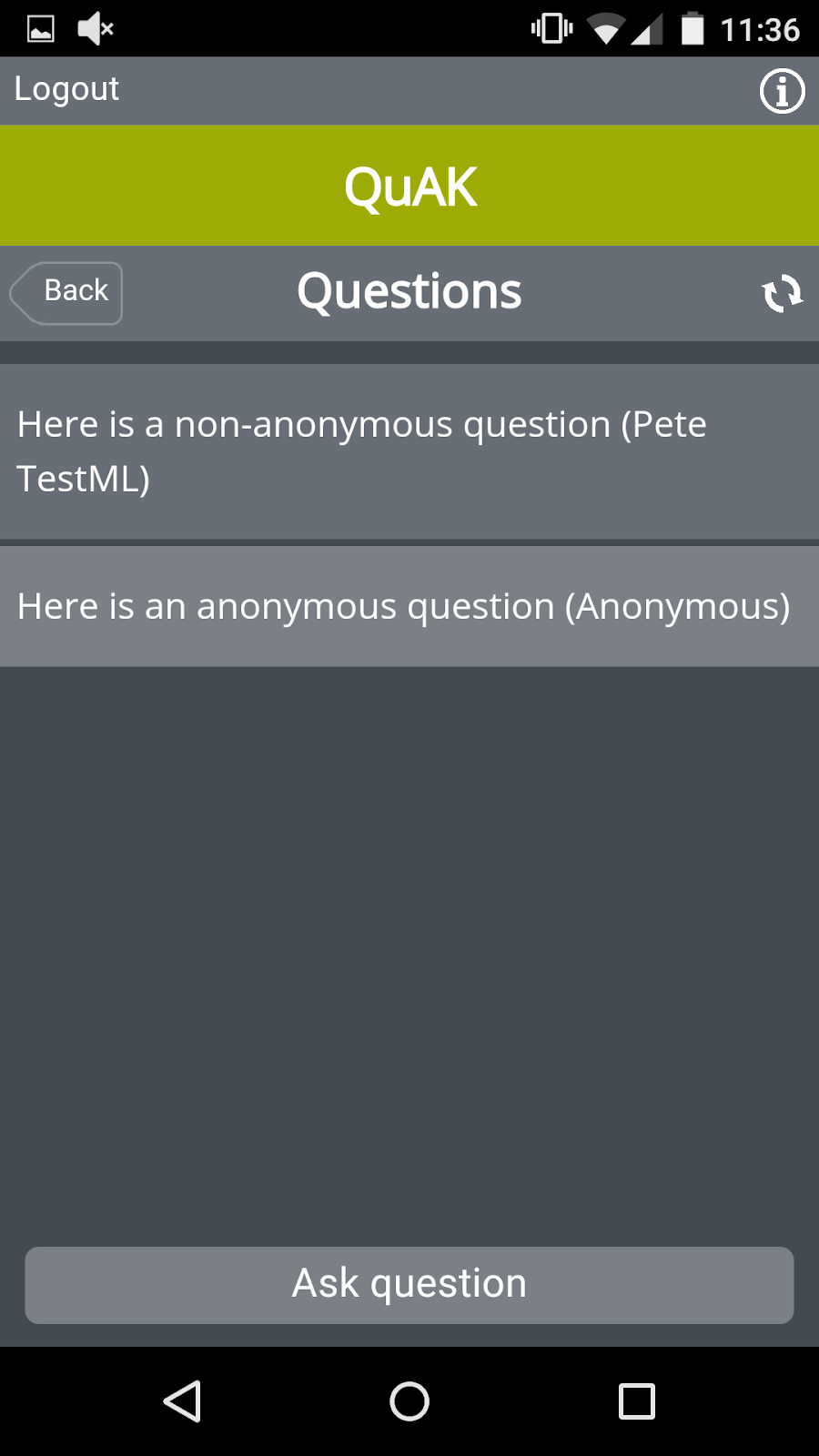
At the bottom of the page users have an option to “Ask question” and can choose to be anonymous or not. The default setting is anonymous.

On the Answers page, module leaders can use the “Delete question” button to delete a question, if required.
On the Answers page the identity of the person answering will always be shown.
The refresh button can be used to update the list of questions and answers at any time. Going into a page will also force it to refresh.
Please note: users will remain logged into the app unless they use the Logout button.
That is it. Hopefully it is simple and straightforward and easy to use in many situations. We recently used it at an OBIS Development Day and it proved useful for capturing interesting questions that there may not have been time to deal with individually. These questions were then followed up with answers after the session. As everything is stored in Moodle activities these can be revisited at any time to promote further discussion or reflection.
Thursday, 17 September 2015
A room with a webview

We have been interested in way-finding and ‘context aware spatial information delivery’ for some time. We have aspirational ideas for pushing the envelope in this app space but, as with all things, we are starting small and building a coherent strategy around our developments.
At this time of year we welcome new students to the institution and, inevitably there is a need to help people to orientate themselves in their unfamiliar surroundings. Normal mapping apps or services get you to the campus and static signage shows you the detail - we want to find a way to cover that liminal space in between.

We have previously released PC Finder for Android , with a web version available as well, to indicate to users the potential availability of computers around the campuses. Due to the list format UI, filtered only by campus, it could tell you ‘what’ you wanted but not necessarily ‘where’.
Roomfinder is our first foray into spatial context. It features stylized image maps of the campuses and uses available Location APIs to determine your device location. This is visually displayed according to position with an indication of accuracy(using the familiar UX of most map based applications). The image maps are scalar (SVG) and so fidelity is preserved on a range of resolutions and this also facilitates location point adjustment as the UI zooms in or out. You can choose to search for a room by keying in the name, which dynamically filters the resulting list, or you can drill down by campus or building. There is an optional direction capability to indicate orientation, like a compass, which introduces a wayfinding sense of direction.

To expand upon the utility of the app we have built a push notification system into it using Google App Engine as the processing component. This again is an initial step into a space which we foresee as becoming more useful and gaining greater adoption - the changing vectors of communications to mitigate the perceived stifling overload of traditional methods like email. Combined with context notifications can be much more pertinent and so leading to more user engagement.
This service will compliment traditional signage and any upcoming Google indoor mapping, by overlaying information applicable to the combination of location and moment.
Over time we hope to add more context to our apps, for Roomfinder this could be point to point path navigation (“maps at the room and floor level”), utility pinpointing (“nearest cafe to me”), integration with other apps and datasets (“visual indication of PC usage in areas”), spatial notification (“you are near the restaurant, today there is an offer on x”) and a myriad of other user stories that could be catered for. We are just starting.
Subscribe to:
Posts
(
Atom
)